
A good celestial cut file should do more than look attractive on a product thumbnail. It needs to open in your design software, keep its important details when resized, and suit the material you plan to cut. The Magic and Celestial SVG Bundle from Creative Fabrica is listed as a 60-design download with SVG, DXF, EPS and PNG files. This guide explains what the listing actually confirms, which formats work with Cricut and Silhouette, what to check before cutting, and where a moon-and-stars style bundle can fit into a small craft business.
Affiliate disclosure: This article contains affiliate links. TestedWise may earn a commission if you purchase through them, at no additional cost to you. Read the full disclosure.
Some links in this guide are affiliate links. If you make a purchase or download through them, TestedWise may earn a commission at no additional cost to you. Product details, access options and review figures below are based on the Creative Fabrica listing viewed on November 17, 2026. We have not purchased the bundle or run a physical cut test, so compatibility guidance is based on the published file list and the software makers' current documentation.
1. What is included in the 60-design bundle?
The Creative Fabrica listing is titled Magic and Celestial SVG Bundle 60 Design and is published by BlackCatsMedia. The description calls it a digital download of word-art vinyl decal cutting files that can be imported into paper-crafting programs such as Cricut Explore and Silhouette, along with other cutting machines. The download is described as a ZIP folder containing the designs in four formats: SVG, DXF, EPS and PNG.
| Listing detail | What the page says | What it means for a buyer |
|---|---|---|
| Design count | 60 designs | A themed collection rather than one standalone cut file |
| File formats | SVG, DXF, EPS and PNG | Several ways to open, edit, print or prepare the artwork |
| Download | ZIP folder | Download to a computer and extract the folder before importing files |
| Intended use | Vinyl decal cutting and paper-craft programs | Especially relevant to Cricut, Silhouette and compatible cutters |
| Creator | BlackCatsMedia | Check the live listing for any updates or creator notes |
| Marketplace rating | 5.0 from 60 reviews | A positive listing signal, not a TestedWise cut-quality test |
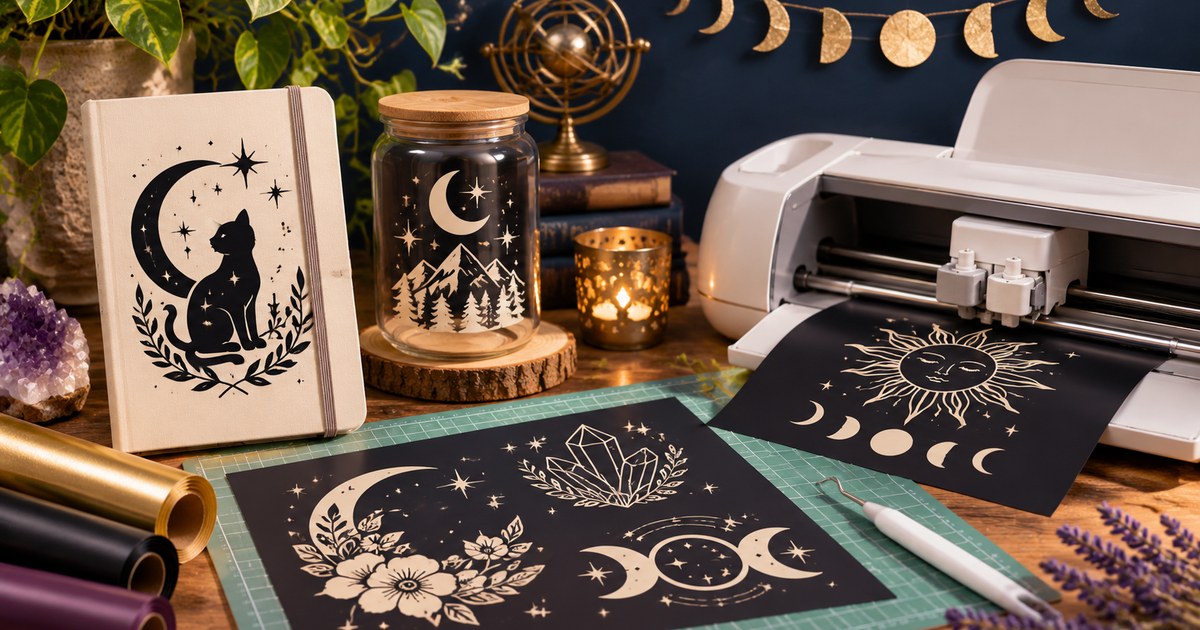
The listing previews show a mystical visual direction: moon phases, stars, sun imagery, crystals, botanical details and other witchy or celestial motifs. Those preview images give a sense of the collection's style, but the public description does not provide a numbered inventory of all 60 designs. If you need a particular symbol, quote or layout, inspect the current preview gallery rather than assuming every pictured motif is included as a separate file.
The page currently displays a $0 download and also offers a way to download the product as a freebie without starting an All Access free trial. That is an important distinction from subscription-only Creative Fabrica products. The access route can change, so confirm the live page and checkout screen before downloading.
View Magic and Celestial SVG Bundle on Creative Fabrica →
2. SVG, DXF, EPS and PNG: what each file is for
Four formats sound generous, but they are not four interchangeable versions of the same thing. The easiest way to avoid frustration is to choose the file by the software and the job—not simply by opening whichever extension appears first in the ZIP folder.
| Format | File type | Most useful for | Important note |
|---|---|---|---|
| SVG | Vector | Cutting, resizing and editing in compatible design software | Silhouette Studio requires Designer Edition or higher to open SVG files |
| DXF | Vector/CAD exchange format | Cutting workflows, including Silhouette Studio Basic | Cricut Design Space supports DXF on desktop, not its iOS or Android apps |
| EPS | Vector/print interchange format | Professional vector workflows and compatible upgraded software | Silhouette Studio lists EPS support in Business Edition |
| PNG | Raster image | Print projects, reference artwork and compatible image-upload workflows | It is pixel-based; the listing does not specify the PNG pixel dimensions or confirm transparent backgrounds |
SVG: the natural starting point for many cutting projects
An SVG stores artwork as vector paths, so the design can usually be enlarged or reduced without the soft, pixelated edges associated with a small raster image. In Cricut Design Space, SVG is treated as a vector upload and its cut paths are already defined. Designs with multiple layers may arrive grouped, allowing you to separate and recolor elements where the file structure supports it.
For a vinyl decal, SVG is usually the first format to try. It gives the cutting software paths to follow instead of asking it to guess the edges from a flat picture. That does not guarantee every design will cut perfectly at every size: very small shapes, narrow gaps and tiny lettering can still be difficult to weed.
DXF: useful when your software edition has different import limits
DXF is especially useful for Silhouette Studio Basic users. Silhouette America lists DXF among the ready-to-cut formats supported by the free Basic Edition. Cricut Design Space also accepts DXF as a vector upload on Windows and Mac, but Cricut says DXF is not supported in its iOS and Android apps at this time.
If you work on a tablet, do not assume the DXF file will behave like an SVG. Check the current app support before planning a project around it.
EPS: keep it for software that actually supports it
EPS is common in professional illustration and print workflows, but it is not listed as a direct upload type in Cricut Design Space's image-upload guide. Silhouette America lists EPS import under Business Edition. If your cutter software does not open EPS, use a vector editor that supports it and export a compatible SVG or DXF copy. After conversion, inspect the paths and dimensions before sending the file to the machine.
PNG: useful artwork, but not the same as a cut-ready vector
A PNG is a raster image. Cricut Design Space treats PNG as a basic image upload, which may need cleanup or a Print Then Cut workflow depending on the result you want. A raster image does not carry the same ready-made vector cut paths as an SVG or DXF. The Creative Fabrica listing names PNG as an included format but does not state its dimensions or whether every PNG has a transparent background, so check the extracted files before planning a transparent decal or a large print.
3. How to use the files in Cricut Design Space
If you are using a Cricut machine, start with the SVG version on a computer. Cricut's upload instructions distinguish vector files such as SVG and DXF from basic raster files such as PNG and JPG. Vector files upload with their cut paths; raster files go through a separate cleanup or print workflow.
- Download and extract the ZIP. Save the bundle to your computer, extract the folder and keep the original ZIP as a backup. Do not try to import the compressed ZIP itself.
- Choose an SVG file first. In Design Space, select Upload, then Upload Image, and browse to the SVG file you want to use.
- Inspect the canvas. Check the scale, grouped layers and design orientation. If the artwork contains several colors or separate components, ungroup only when you need to edit them.
- Set the finished size. Enter the width or height you need and keep the proportions locked unless you intentionally want to distort the design.
- Check the cut preview. Look for unexpected outlines, tiny islands, missing details or paths that overlap. If the design has very fine details, make a small test cut before using a full sheet of material.
- Choose the material setting. Use the setting recommended for the exact vinyl, cardstock or other material you have. Material brands and thicknesses can differ.
- Cut, weed and transfer carefully. Remove the excess material, use transfer tape when appropriate for adhesive vinyl, and follow the material manufacturer's application instructions.
Cricut currently documents a 5,000-path limit for SVG uploads. If a particular file produces a file-too-large error, the issue may be the number of vector paths rather than the physical dimensions of the design. Try a simpler file, or use a vector editor to inspect and simplify the artwork without removing details you need.
For PNG files, the workflow is different. Upload the image as a basic image, clean the background if needed, and choose a suitable output such as a single-layer cut or Print Then Cut. The right option depends on whether you want a simple silhouette or a full-color printed design.
4. What works in Silhouette Studio?
Silhouette Studio's edition differences matter more than many first-time buyers expect. According to Silhouette America's current file-type guide, Basic Edition can open DXF as a ready-to-cut format and can import PNG, JPG, BMP, GIF and TIF for tracing. Designer Edition adds SVG and PDF support. Business Edition adds AI, EPS and CDR import.
| Silhouette Studio edition | Formats from this bundle to look for |
|---|---|
| Basic Edition | DXF; PNG can be imported and traced |
| Designer Edition | SVG and DXF; PNG remains available as a raster import |
| Business Edition | EPS, SVG and DXF; PNG remains available as a raster import |
This does not mean every format will produce the same result. A vector file can preserve cut paths, while a PNG may need tracing. If you use Basic Edition, the DXF copy is likely the most straightforward place to start. If you already own Designer or Business Edition, compare the SVG or EPS version with the DXF and use the one that opens cleanly in your current software.
5. Project ideas for celestial cut files
The bundle's theme lends itself to projects where a small symbol or a coordinated group of motifs can carry the design. The ideas below are practical applications of the listed file types and the preview style, not finished products tested with this exact download.
1. Moon-phase glassware and storage jars
A simple crescent or moon-phase motif can work on a glass jar, canister or drinking glass when you use suitable adhesive vinyl. Keep the design large enough for the smallest details to remain distinct, clean the surface before application, and follow the vinyl manufacturer's guidance for washing and durability. Not every vinyl is dishwasher-safe.
2. Celestial tote bags
Use heat-transfer vinyl on a compatible fabric tote. A larger sun, moon or crystal motif is easier to weed than a tiny, highly detailed composition. If the tote is intended for regular use, choose HTV designed for the fabric and follow the temperature, pressure and peel instructions supplied with that material.
3. Notebook covers and journal accessories
Small moon, star or botanical designs can personalize a notebook cover, pencil case or storage folder. Adhesive vinyl works well on many smooth surfaces; cardstock or printable paper is another option if you prefer a paper-craft finish.
4. Wall art and framed prints
For a framed print, use the PNG version only after checking its pixel dimensions and background. If the artwork is better suited to a cut design, use an SVG in a layered paper project. A coordinated set of two or three motifs can look more intentional than filling every available space with small icons.
5. Stickers and gift packaging
PNG artwork can be useful for print-based stickers, while SVG is a better starting point for cut-only vinyl stickers. Use a compatible printable sticker material and check whether your printer and cutter support the workflow you want.
6. How to get cleaner cuts from detailed designs
A file can be technically compatible and still be awkward to cut if the final design is too small for the material or blade. This is especially relevant to celestial artwork, where stars, thin crescent edges and small decorative gaps can become fragile.
- Do not shrink the artwork blindly. A design that looks detailed on screen may lose its smallest shapes when reduced to a two-inch decal.
- Use a test cut. Try one small section or a low-cost material offcut before committing to a full sheet.
- Match the blade and material. A worn blade, unsuitable mat or incorrect material setting can make weeding harder even when the file itself is fine.
- Look for very narrow gaps. Small negative spaces can close up when cut, transferred or pressed.
- Keep layers organized. If the file contains multiple colors or separate elements, name or group the parts before cutting several materials.
- Check the transfer surface. Dust, lint, texture and curved surfaces can make an otherwise clean decal harder to apply.
We have not cut the files in this bundle, so these are general preparation steps rather than claims about its cut performance. The best practical check is to open one design in your own software and test it at the size you intend to make.
7. Commercial use and Creative Fabrica licensing
The product page currently displays a commercial-use allowance and says the download includes a commercial license. That is useful for crafters who want to make physical products, but “commercial use” does not mean you can redistribute the original ZIP or sell the designs as another digital bundle.
Creative Fabrica publishes separate Single Sales and Subscription License terms. The applicable terms depend on how the item is obtained. The current license pages allow certain physical end products to be sold, but prohibit reselling, sharing or redistributing the downloaded source files. They also restrict digital end products that compete with the original asset or allow a buyer to extract the original design. Digital end products generally need to be flattened so the source artwork cannot be recovered.
For print-on-demand, the current license text says downloads made on or after April 25, 2026 in non-needlework categories include Full POD rights, subject to the specific restrictions in the license. Subscription access has additional rules about what can continue to be sold after the subscription ends. Do not assume the same post-cancellation rights apply to every download route. Read the license attached to your own download before listing products for sale.
In practical terms:
- Do not upload the original SVG, DXF, EPS or PNG files for resale or share them with customers as a free bonus.
- Do not repackage the 60 designs, recolor them and sell the result as a competing cut-file bundle.
- When selling a physical item, sell the finished product—not a copy of the source file.
- For a digital product such as a printable or template, make sure it is a genuinely new end product and that the original artwork cannot be extracted.
- For POD platforms, check the current license section that applies to your download and the platform's own content rules.
Read the Creative Fabrica Single Sales License and Subscription License before using the designs commercially. This guide is a practical summary, not legal advice.
8. Price, download access and customer feedback
At the time of review, the listing showed a free download option at $0 and a separate “download as a freebie” route that does not require starting an All Access free trial. That makes the bundle easier to try than products that are only available through a paid subscription. Always confirm the final download route and any account requirements on the live page.
The Marketplace page showed a 5.0 score from 60 reviews when checked on November 17, 2026. That is a stronger feedback sample than a listing with only a handful of ratings, but the score still reflects the experiences of Creative Fabrica customers, not a controlled test of every file, cutting machine or material. One review mentioned that the bundle had a vintage feel; other visible comments were brief thank-yous or general positive reactions.
For a buyer, the most useful next step is to inspect the preview gallery, download the ZIP, confirm that the four formats are present, and open one SVG or DXF in the software you actually use. That short check tells you more about your own workflow than the star rating alone.
9. Who is this bundle best for?
A good fit: Cricut or Silhouette users who like moon, star and mystical artwork; crafters who want a range of file formats; and small makers who already know how to cut and apply vinyl or prepare layered paper projects.
Less suitable if: you need a specific named design that is not visible in the preview; you rely on EPS but do not have software that opens it; you use Silhouette Basic and expect to open SVG directly; or you want a ready-made, transparent PNG at a guaranteed print size. The listing does not publish PNG dimensions or a complete inventory of the 60 designs.
If you are new to SVG cut files, our guide to how to choose SVG files for Cricut explains vector paths, layers and file checks in more detail. For more examples of how different cut files suit different projects, see our guide to popular SVG files for Cricut beginners. If you prefer full-color floral artwork rather than cut-file projects, see the Vintage Flowers Sublimation Bundle guide.
10. Magic and Celestial SVG Bundle FAQs
How many designs are included in the Magic and Celestial SVG Bundle?
The Creative Fabrica listing states that the bundle contains 60 designs. It does not publish a complete numbered inventory in the text description, so check the preview gallery if you need a specific motif.
What file formats are included?
The listing says the ZIP folder includes SVG, DXF, EPS and PNG files. It does not specify the pixel dimensions or transparent-background status of the PNG files.
Can I use this bundle with Cricut Design Space?
The listing describes the files as suitable for Cricut Explore and other cutting programs. Cricut Design Space officially supports SVG and DXF vector uploads on desktop. DXF is not supported in the iOS or Android apps, so SVG is usually the safer choice if you work on mobile.
Can I open the SVG files in the free Silhouette Studio Basic Edition?
Silhouette America's file-type guide lists DXF as supported in Basic Edition. SVG import is listed for Designer Edition and higher. If you use Basic Edition, start with the DXF files.
Does the bundle include commercial use?
The product page currently displays “Commercial use allowed” and says a commercial license is included. The license still prohibits sharing or reselling the original digital files and places conditions on digital end products and print-on-demand use. Read the current license that applies to your download.
Do I need a Creative Fabrica subscription to download it?
At the time of review, the product page showed a $0 download and a separate freebie option that does not require an All Access free trial. Check the live listing because access options can change.
Are these files guaranteed to cut cleanly at any size?
No. The listing does not provide a cut test for every machine or material. Fine details may need to be enlarged, simplified or test-cut at the size you plan to use.
For another kind of digital craft file, see our guide to machine embroidery file formats. If you are comparing different printable or sublimation resources, our Vintage Flowers guide covers a separate PNG-based workflow.